A more helpful Chrome, throughout your workday
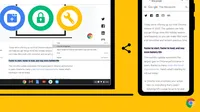
Lately, my productivity has been up and down, following the curves of the pandemic and the seasons. But where I live, spring is here 🌷. And, in addition to spending more time in my garden, I’m finally zeroing in on how I can be more productive working from home. Here’s how I use some new Chrome features to get work and life done throughout my day. Check them out for your own productivity boost.
Link to your highlighted text
As a product manager for Chrome, I often read research studies, articles and even tweets about how people use their browsers. Yesterday, I read a long article with an interesting data point I wanted to share with a colleague. Instead of copying the link from the address bar, I used Chrome’s new “link to highlight” feature by highlighting the text I want to share, right-clicking, choosing “Copy link to highlight” and then sending the link. When my coworker opened the link, he saw the exact section of text I wanted him to see 🙌. This feature is rolling out now to desktop and Android and is coming soon for iOS.
With “Copy link to highlight”, you can share a URL for selected text highlighted for the recipient.

New PDF features
During lunch, I decided to double-check a PDF for a presentation to my volunteer group. So, I took the opportunity to test drive the new PDF reader features my team and I just released, building on last year’s work to fill out and save PDF forms.
When I opened the PDF, I used the new sidebar to browse the thumbnails and quickly jump to the specific page I wanted to check. To practice for later, I turned on the new presentation mode, removing the on-screen distractions (toolbars, address bar, tabs), so my presentation will be focused and so will my audience.
We added more features to make working with PDFs better: document properties, two-page view and an updated top toolbar, which puts the most important PDF actions (zoom, jump to page, save, print and more) within a single click. These features are rolling out now.
New features on Chrome’s PDF reader: Check out the new top toolbar, side toolbar and overflow menu.

Mute notifications when presenting
Later in the day, I had a few meetings back to back. First up was a team meeting where I presented the latest designs for an upcoming feature. Luckily now, when presenting or sharing Chrome windows, Chrome 13% faster even with lots of tabs open.
Last but not least, we’re soon launching tab freezing for The Fast and the Curious, on the Chromium blog.
When you collapse tab groups, Chrome will automatically freeze the tabs so they use less memory and CPU.

Name your windows
To set myself up for success the next day, my final work task was to organize my tabs and windows. I used tab groups to organize projects and then (drum roll please) I used window naming. I right-clicked on an empty spot in the tab strip and named each of my windows. With custom windows names, when you press alt+tab to switch windows or right-click on a tab and select “Move to another window” it’s easier to distinguish between open windows and you can find what you're looking for faster. This feature is rolling out now.With custom window names, it’s easier to distinguish between your open Chrome windows.

I hope these new Chrome features add productivity to your day and a spring to your step, like they do mine.


