

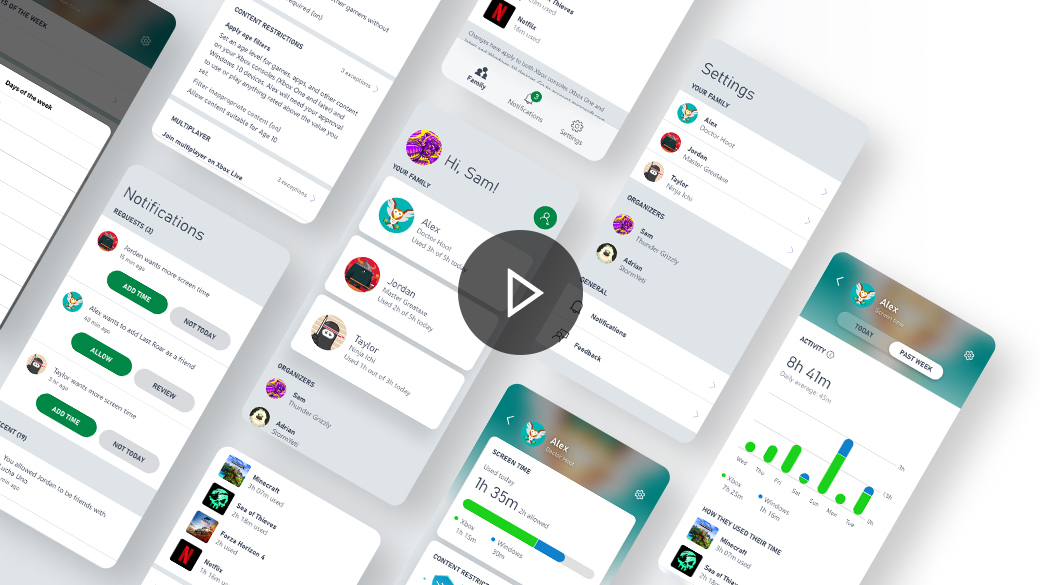
Xbox Family Settings app
Easily manage your children’s gaming activities on Xbox consoles, all from your phone and in real time.
LEARN MORE
Benefits of a family group
You can personalise each child’s online experience based on age-appropriate limits that you set for privacy, online purchases, content filters, screen time, and more with the Xbox Family Settings app for console or on account.microsoft.com/family.
LEARN MORE
Add a family member online
The easiest way to set up and manage your family is with the Xbox Family Settings app for console or on account.microsoft.com/family, where you can invite members to join.
LEARN MORE
Add a family member on your Xbox consoles
For children and teens who are new to Xbox, add them to your family group and manage their family settings with the Xbox Family Settings app for console or on account.microsoft.com/family.
LEARN MORE
Change your child’s Xbox online settings
Only a parent using the family group feature can change Xbox privacy and online settings for a child account. See whether you’re listed as a child or an adult in a family group by checking the Xbox Family Settings app for console or signing in at account.microsoft.com/family.
LEARN MORE
Set device screen time limits online
Sign in to the Xbox Family Settings app or to your Microsoft account on your Windows to schedule time for your kids. Customise how much time is spent each day of the week and when the device can be used. The screen time countdown starts once the person is signed in and stops when signed out.
LEARN MORE
Set app and game screen time limits
Set a time limit for a specific game or app in your Microsoft family group account. These time limits are shared across your Xbox consoles and Windows devices through account.microsoft.com.
LEARN MORE
Set screen time notifications
Turn on system notifications from your Xbox consoles to give players a heads-up on the console when screen time is about to run out.
LEARN MORE
View activity reports
Get activity reporting on your child’s Microsoft account and view a summary of their activity on Xbox consoles and Windows devices.
LEARN MORE
Approve your child’s purchases
With Ask a Parent, you’ll receive an email when your kids want to purchase a game or app and need your help to fund the purchase. Or you can create a passkey to limit purchases made on your account.

Set up an allowance
Easily add money to your child’s account to limit purchases they can make on their own.
LEARN MORE
Keep track of purchases
View your Microsoft Store order history online or from your Xbox console.
LEARN MORE
Loot boxes
Concerned about loot boxes in game racking up bills? Check out the Xbox Game Studios Loot Box Policies.
LEARN MORELook for these ratings:
-

GENERAL
Suitable for general audiences.
-

PARENTAL GUIDANCE
Parental guidance recommended for younger viewers.
-

MATURE
Suitable for mature audiences 16 years and over.
-

RESTRICTED 13
Restricted to persons 13 years and over.
-

RESTRICTED 15
Restricted to persons 15 years and over.
-

RESTRICTED 16
Restricted to persons 16 years and over.
-

RESTRICTED 18
Restricted to persons 18 years and over.
Explore family friendly games

Dungeons and Ducklings
*Sample of games rated GENERAL and PARENTAL GUIDANCE.

Minecraft Parents Guide
There's no experience like a shared adventure with your children. If your child wants to play, or is already playing Minecraft, you may have questions to ensure the game offers a safe experience.
LEARN MORE

Manage what your child can do
Allow or block your child’s ability to join multiplayer online games, create and join clubs, broadcast their gameplay, add friends and chat.
LEARN MORE
Choose how others interact with your child
Choose who can communicate with your child, select who can see what your child watches or plays, and decide what profile information others can see.
LEARN MORE
Use app privacy settings
When you download apps from the Microsoft Store on your Xbox Series X|S or Xbox One, each app requires permission to access data from your console. You can use privacy settings to control what data is collected and how it’s used.
LEARN MORE
Calling all kids!
Find out what data collection is, and what info we get when you play on Xbox.
LEARN MORE

Code of conduct
When you join Xbox and create an account, you agree to follow our Code of Conduct. Conduct is anything you do that impacts yourself and others. Promote positive impact, avoid negative impact.
VIEW CODE OF CONDUCT
Mute or block others
If you don’t want to be contacted by specific people, you can mute or block their communications with you. Muting a person prevents them from speaking to you in-game or in a chat session. Blocking a person prevents you from receiving that person’s messages and game invites, removes them from your friends list, and hides your online activity from them.
LEARN MORE
Report bullies and bad behaviour
Behaviour or content that is harmful or offensive is not tolerated. If you think a person violated the Community Standards, submit a report to Xbox. You can report a player’s behaviour or report specific content such as messages, Clubs and activity feed items. File a complaint:

*Xbox Series X|S and Xbox One
**Windows 10/11


